
This guide assumes that an NFC is already attached to your account. If you are not sure or don’t have any NFCs registered, reach out to the Support team.
NFC Set Up #
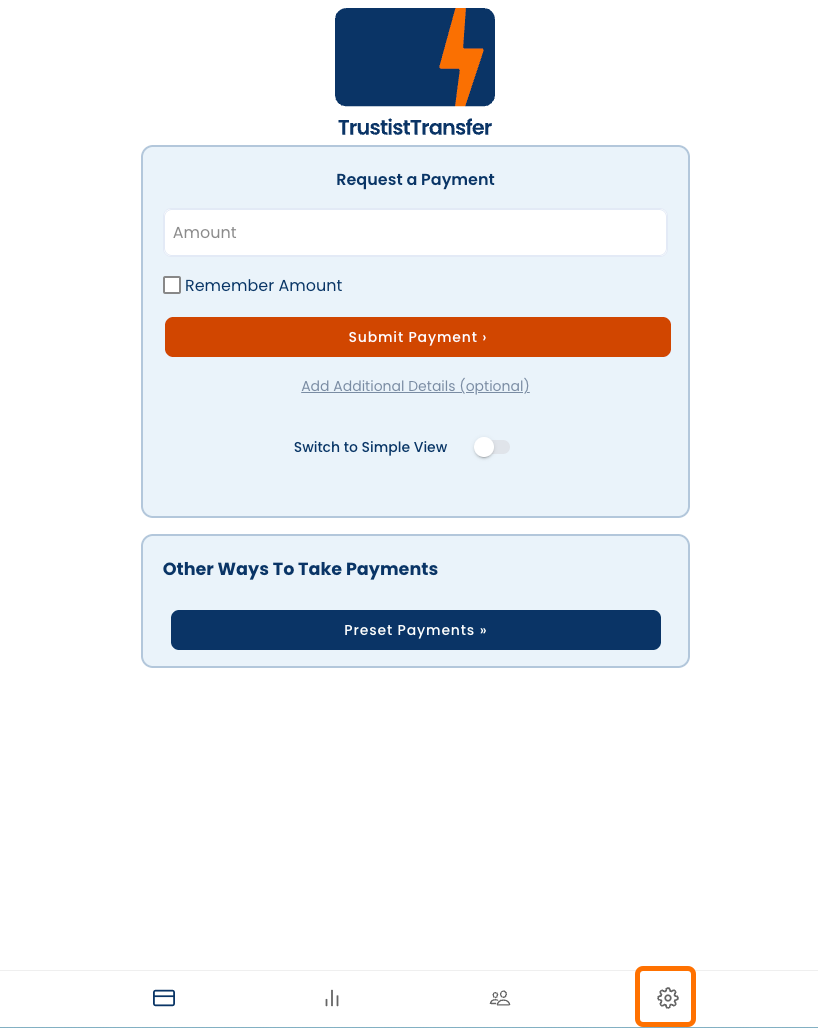
Log in and navigate to the main payment screen on TrustistTransfer. Press the settings cog in the bottom toolbar.
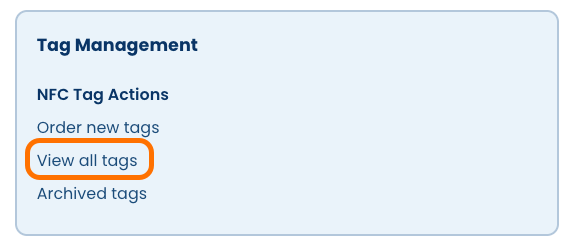
Scroll to the Tag Management section. You can press ‘View All Tags’ here to see all the tags associated with your account.
At this stage, you can also rename each individual tag with a recognisable name by pressing the pen ‘edit’ icon.
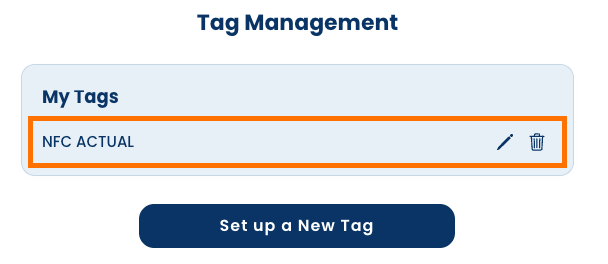
At this stage, if you are enabling your own NFC tags – rather than Head Office completing this stage for you – you can also press ‘Set up a New Tag’ and complete the steps to link your own NFC to your account.
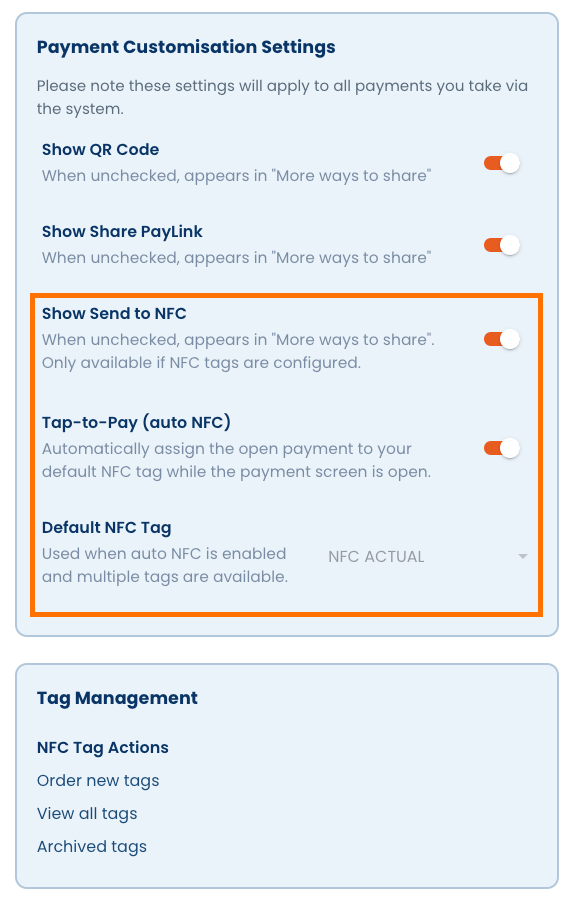
Return to the settings screen and scroll to ‘Payment Customisation Settings’. Ensure either of the following are enabled:
- ‘Show Send to NFC’ – this is manual NFC only
- ‘Tap-to-Pay (auto NFC) – this is the setting for payments to automatically link to your NFC tag. If you have this setting enabled, click the drop down next to ‘Default NFC Tag’ and select the relevant NFC tag that you’d like to be your main tag – this might be the tag you have next to your point of payment, for example.
- You will need to set a main/default NFC tag if you wish for NFC payments to be automatic. If you want the same account to write to more than one NFC tag (where there are multiple places to take payment, for example), you will, in most cases, need to have manual NFC only.
Taking Payments on NFC #
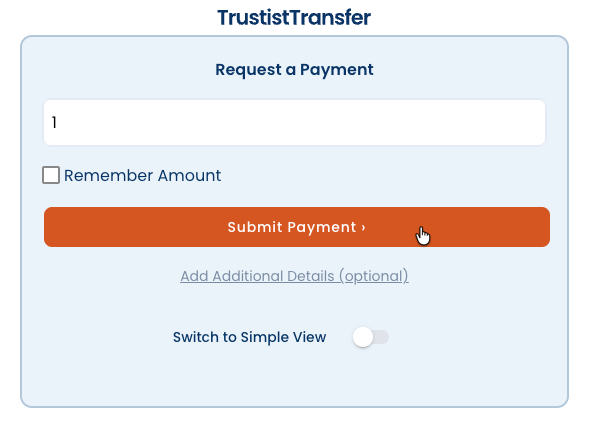
Return to the main payment screen and input the payment amount you are requesting from your customer. Press ‘submit payment’.
The normal QR code screen will appear alongside the PayLink, as well as NFC options.
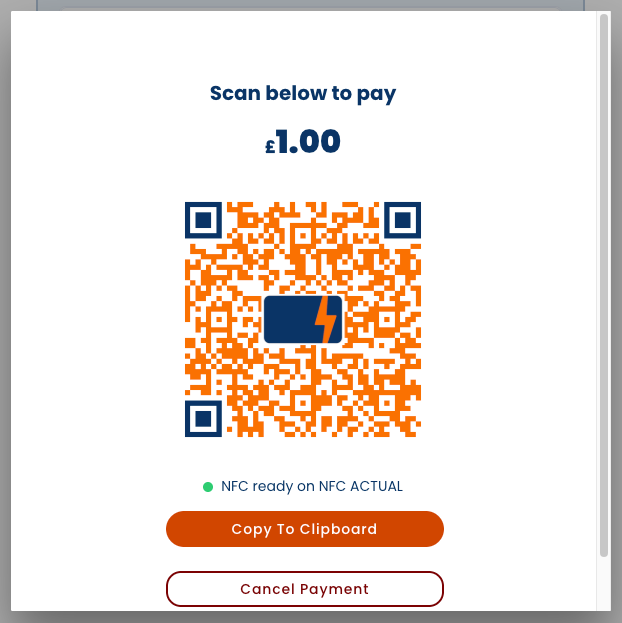
If you have chosen manual NFC only, a separate button will be visible here which allows you to send the payment to an NFC chip of your choice – for example, a specific table at a restaurant.
If you have selected Auto NFC and have a default NFC enabled, the screen will show that the NFC payment has been mapped to the default NFC.
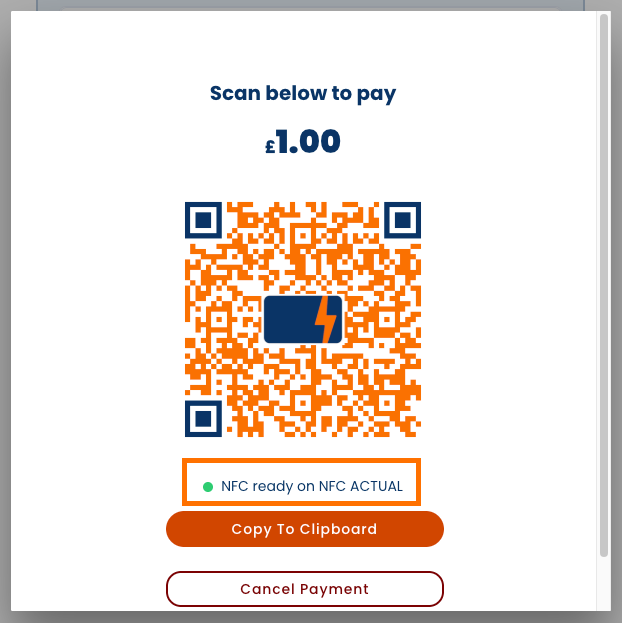
Taking Payment #
Once the payment has been sent to your preferred NFC, your customer can tap against the NFC with their NFC-enabled device. This will send a prompt to their device, which can then be opened in their preferred browser.
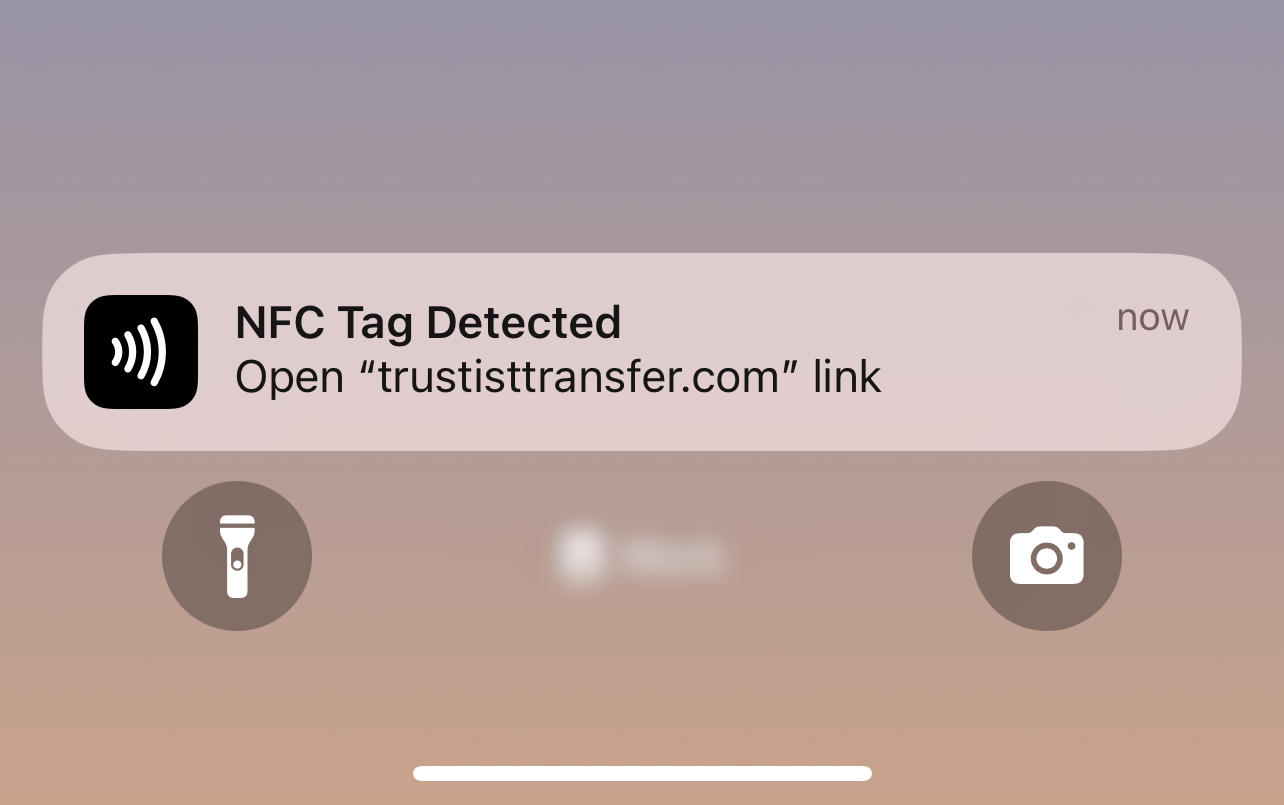
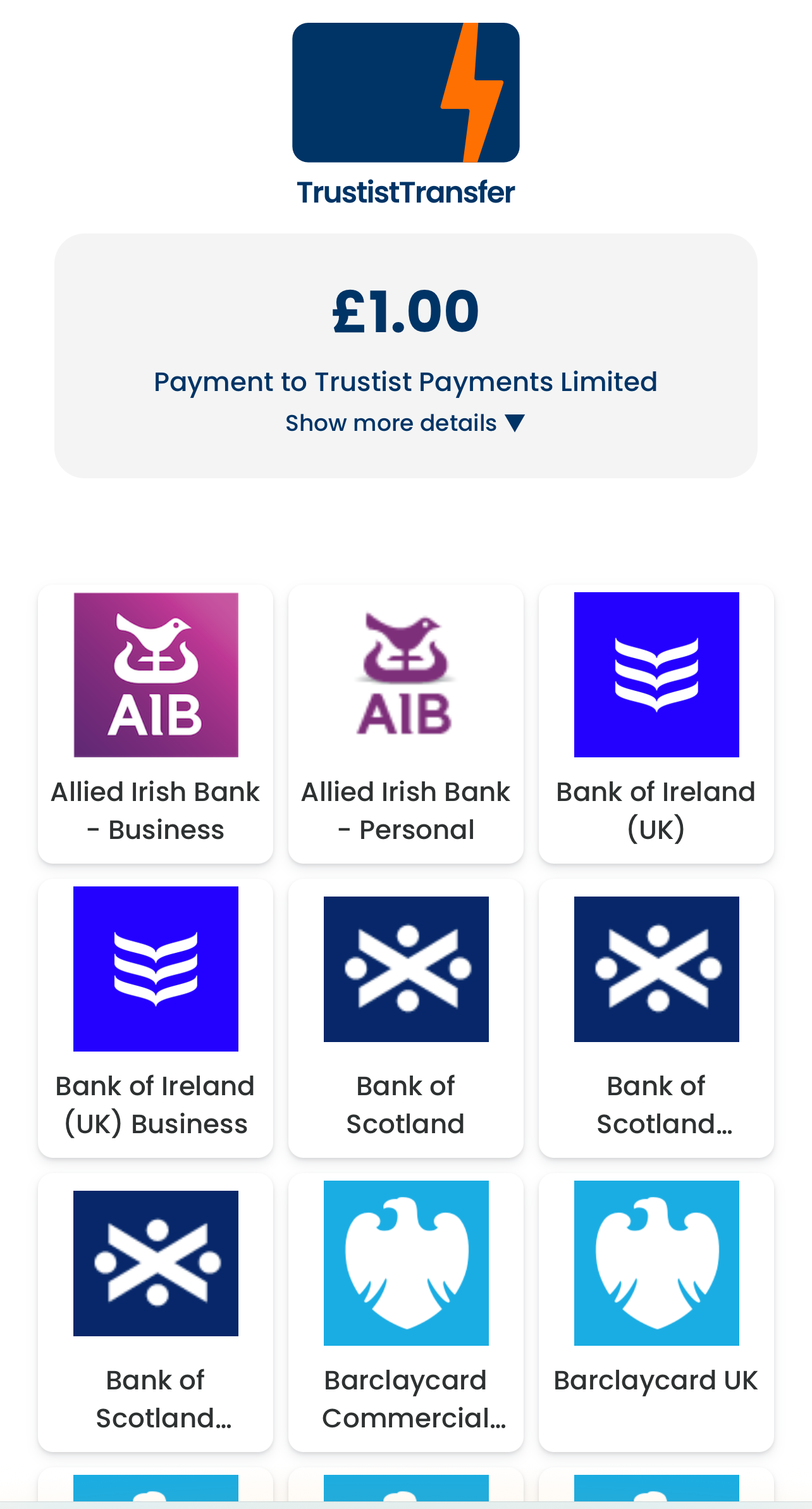
Once the link is opened on their device, the customer will see the familiar TrustistTransfer payment screen to complete their payment to you. As with all payments, the merchant name (‘Payment to…’) and the amount to be paid are automatically filled.
Unmapped NFCs #
If an NFC does not have an active payment mapped to it, it will display a ‘Waiting for instruction’ message if tapped. Ensure the payment has been correctly sent to the relevant NFC and amend any issues as required. Your customer can then rescan the NFC to bring up the payment options.